
.png?width=1600&height=800&name=einfache_leichte_sprache%20(1).png)
Practice & Business
Accessibility Law
.png?width=1200&height=600&name=easyvision%20(2).png)

The easyVision widget can be integrated into your website in just a few minutes - without any prior technical knowledge. In this article, we will show you step by step how to insert the embed code, position the widget and adapt the appearance to your requirements.
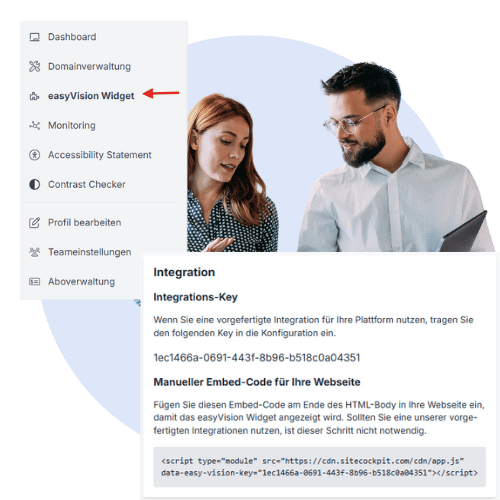
You can find your individual embed code in the SiteCockpit backend under the menu item "easyVision Widget". Alternatively, you can switch to the "Widget" tab via the domain settings.
There you will find the section "Manual embed code for your website". Copy this code and paste it directly before the closing tag of your website or in the footer of your store system. The widget is now technically active.
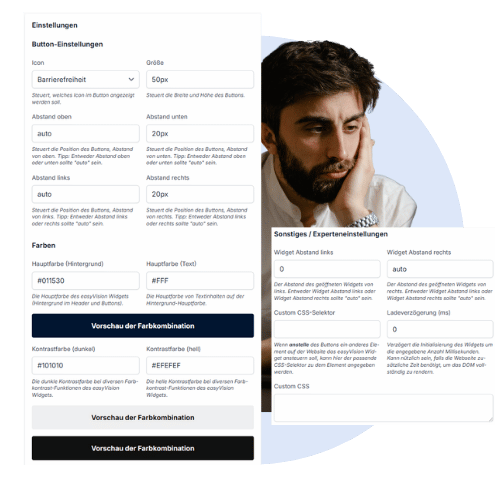
After embedding, you can define where the widget is displayed. By default, the button appears at the bottom right. You can use the "Widget distance right" and "Widget distance left" settings to move it flexibly, for example to the left or centered.
You can also adjust the icon, size, color and display of the button. A check is particularly recommended on mobile devices if you also use Trusted Shops, for example, to avoid overlaps.
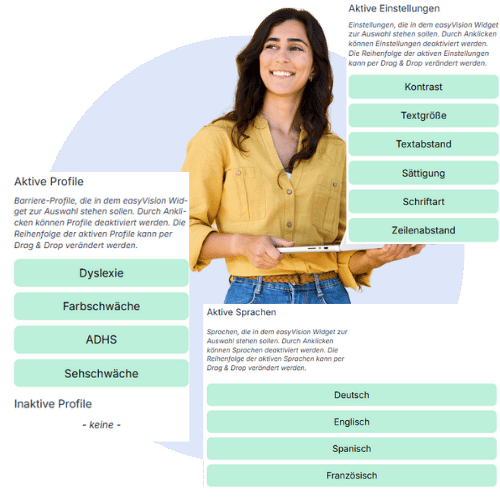
In the backend, you can choose from a variety of functions that you would like to make available in the widget, e.g. contrast mode, reading modes or font sizes. You can add or remove these options by simply clicking on them.
Predefined accessibility profiles are also available, which users can activate with a single click. Language settings can also be customized and activated or deactivated in multiple languages.
.png?width=1600&height=800&name=performance%20(1).png)